

How it works
Data access in Human Intelligence follows a simple chain:1
Categories label data
Every metric and dimension can carry one or more categories that describe its sensitivity — things like “compensation” or “PII.”
2
Org boundaries scope populations
A boundary describes whose rows are in scope — the whole organization, a named department or location, or a population relative to the viewer, like their own reporting line.
3
Rules pair categories with boundaries
A rule says: for this data role, this set of categories is visible within this boundary. Rules are the atom of access — a category grant is always scoped by a boundary.
4
Users get data roles
Each person is assigned one or more data roles, usually based on their job function or team. Their access is the union of every rule attached to their roles.
5
Access is enforced
When someone opens a report or queries data through a connector, Human Intelligence evaluates their roles’ rules. Categories they hold appear, filtered to the rows their boundaries allow; everything else stays hidden.
System roles
Human Intelligence ships with three built-in system roles that govern access to the platform itself. Unlike data roles, system roles can’t be edited or deleted. System roles can be combined — someone can hold both Platform Admin and Data Admin, for example.Platform Admin
Platform Admins own the configuration of the Human Intelligence platform for your organization. They can:- Configure SSO for the org.
- Configure Directory Sync for the org.
- Configure Directory Sync group-to-role mappings so people are placed into the right roles automatically.
- Create and delete roles.
- Assign categories to roles.
- Assign categories to metrics.
- Manage policies and assign policies to roles or the organization.
Data Admin
Data Admins own the data layer. They can:- Query all data.
- Manage metrics — create, edit, and retire metric definitions.
- Manage segments — create, edit, and retire reusable filters.
- Manage data visibility — create, edit, and retire data roles, categories, org boundaries, and rules.
Member
Member is the default system role for everyone else in your organization. Members can sign in, explore metrics, and query data through reports and connectors — but they see only the data their data roles grant. A Member with no data roles sees nothing sensitive.Data roles
A data role is a named grant of data visibility, defined by your Data Admins. Where system roles are fixed and platform-defined, data roles are entirely yours: you create them to match how your organization thinks about access — “Recruiting Ops,” “HR Leadership,” “Finance Partners.” A data role gets its meaning from the rules attached to it. Each rule pairs a set of categories (what kind of data) with one or more org boundaries (whose rows). For example:- Recruiting Ops — a rule allowing
interview-notesanddemographicsacross the whole organization. - HR Leadership — a rule allowing
compensation,performance, anddemographicsacross the whole organization. - Regional People Partner — a rule allowing
compensationandperformance, bounded to the EMEA subtree of the org hierarchy. - Manager Self-Service — a rule allowing
performance, bounded to the viewer’s own reporting line.
Categories
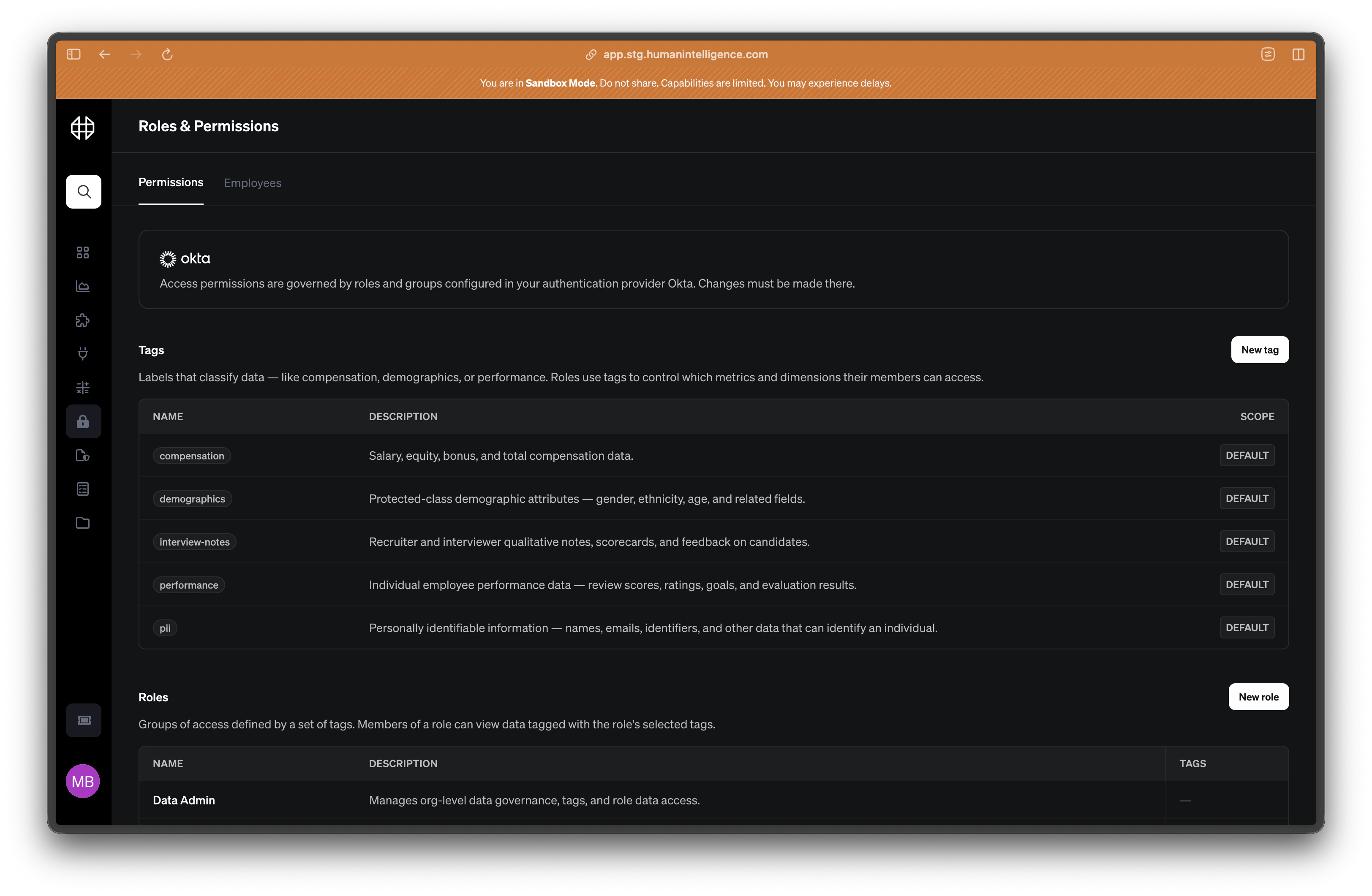
A category is a plain-language label that describes what kind of data something contains. Human Intelligence comes with a set of default categories. Your Data Admin can also create custom categories to fit your organization’s needs.
Categories are assigned at the metric or dimension level. A single metric can carry multiple categories if it touches more than one sensitive area.
Org boundaries
An org boundary describes a population — which people’s rows a grant covers. Boundaries are built from the organizational hierarchies available in your connected HRIS: supervisory org, department, cost center, location, or any other hierarchy your system provides. A boundary is one of:- The whole organization — every row is in scope. Use this when a role’s access shouldn’t be limited by population.
- A set of hierarchy subtrees — one or more anchor points in a hierarchy, each covering either just that org unit or the unit and everything beneath it.
- Statically — pinned to a named org unit, like the Sales department or the London location. Everyone holding the role sees the same population, regardless of who they are.
- User-relative — resolved from the viewer’s own position in the hierarchy at query time. “Your own team” or “your own reporting line” means something different for each person holding the role, so one rule can serve every manager in the company.
Boundaries scope populations, not values. “Only the EMEA subtree” is a boundary; “only rows where salary is above X” is not — that’s a filter or segment concern, handled in the Segments layer.
Rules
A rule is the pairing that makes access concrete: a set of categories × a set of org boundaries, attached to one or more data roles. Categories alone say what kind of data; boundaries alone say whose rows; a rule binds the two together for a role. Rules come in two effects:- Allow — grants the paired categories, within the paired boundaries, to the attached roles. All access flows from allow rules; a category no rule allows is simply invisible.
- Deny — subtracts rows. Where an allow rule and a deny rule overlap, the deny wins. Denies are for carving exceptions out of a broader allow — for example, allowing
performancecompany-wide but denying it within the executive subtree.
- Access is additive across allow rules. Someone holding multiple data roles, or a role with multiple rules, sees the union of everything allowed — minus anything denied.
- Deny always wins on overlap. If any deny rule covers a category and row for a role, that row is hidden even if another rule allows it.
- Enforcement fails closed. If a boundary can’t be resolved for a viewer — for example, they don’t appear in the hierarchy it anchors on — the categories in that rule are denied rather than opened up. Missing configuration never widens access.
Creating a category and assigning it
1
Open the Permissions page
Go to Settings > Permissions. You’ll see the Categories table at the top with all current categories listed.
2
Create a new category
Click Add Category. Give it a short, descriptive name (like “executive-only” or “recruiting”) and add a plain-English description so your team understands what it covers.
3
Assign the category to a metric or dimension
Navigate to the metric or dimension you want to protect. Open its detail panel and look for the Categories section. Select the category you just created and save.
4
Grant the category through a rule
Go back to Settings > Permissions and scroll to the Roles section. Add or edit a rule on the data role that should have access: include the category, choose the org boundary the grant should cover (whole org, a named subtree, or user-relative), and save.