

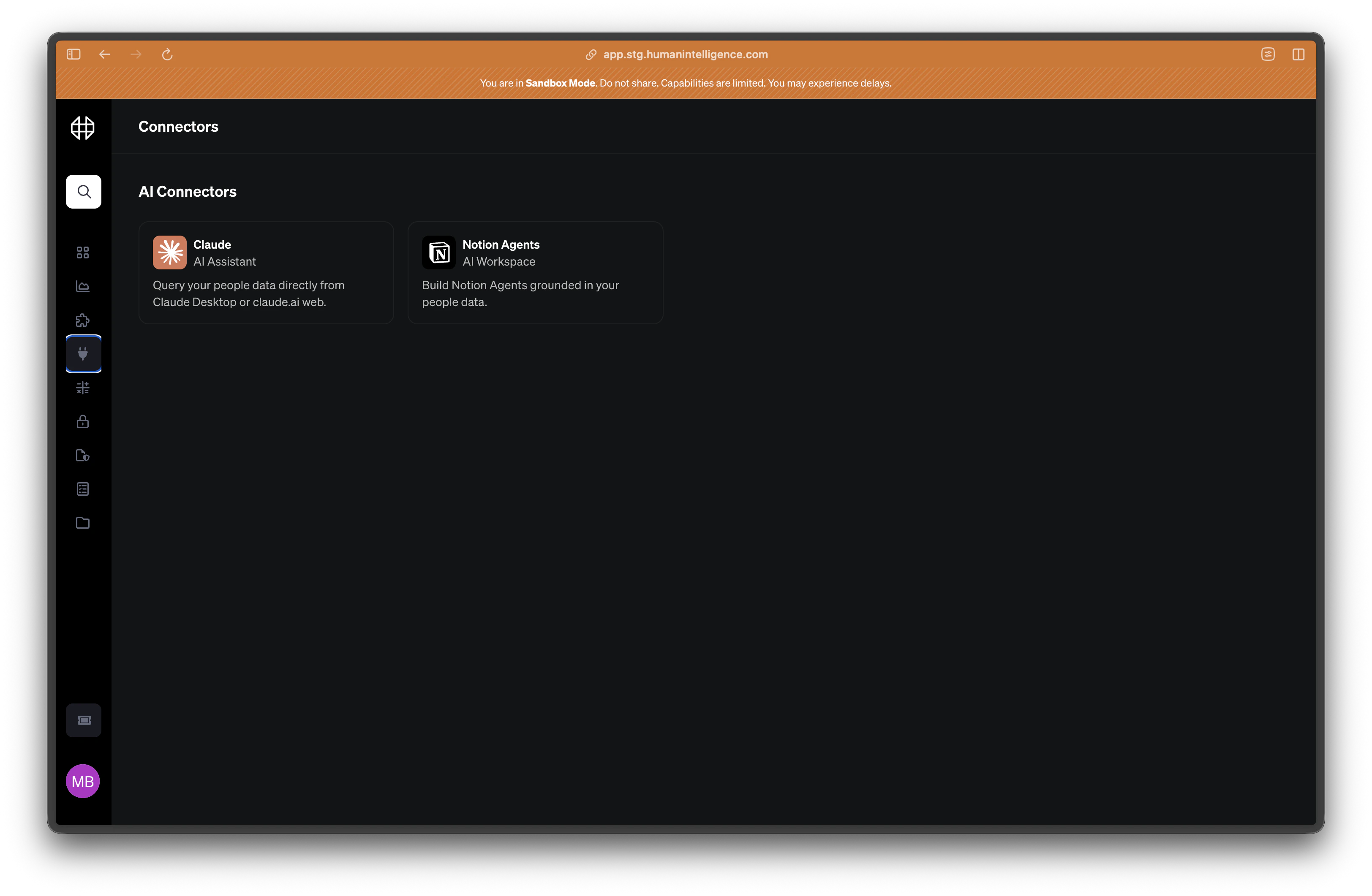
Integrations and connectors do different things.Integrations bring data into Human Intelligence from your people systems like your HRIS or ATS. Connectors do the opposite — they let you access your governed data from AI tools via MCP.
Available connectors
Claude
Add Human Intelligence as a custom connector in Claude Desktop or claude.ai web — there’s a one-click setup link. Ask questions like “What’s engineering attrition this quarter?” and get answers grounded in your governed metrics and definitions.
Notion Agents
Build Notion agents grounded in your people data. Pull live metrics into your
team’s workspace and create automations that stay in sync with your governed
definitions.
SQL API
Query your governed data over the Postgres wire protocol from Hex, Streamlit, psql, or any Postgres-compatible client. Governed metrics are available directly in SQL via
MEASURE().Any MCP-compatible tool
Our MCP server is spec-compliant and works with any client that supports the Model Context Protocol — including internal agent harnesses your engineering team builds itself.
What you’ll need
Every connector points at the same place. Setting one up takes two values:
The connector name is just a display label — you can call it whatever you like. The URL is the same for every customer and every user; see the MCP overview for why.
Setting up a connector
1
Go to the Connectors page
Open Human Intelligence and navigate to Connectors in the left sidebar. You’ll see the available tools you can connect to.
2
Choose your tool
Pick the AI tool you want to connect. Each connector page shows the MCP server
URL, the connector name, and the exact steps for that tool.
3
Add the server in your tool
In your AI tool, add a custom MCP server or connector using the URL and name
above. The steps differ by tool — see the Claude and
Notion Agents pages. Claude has a one-click setup
link that fills both fields in for you.
4
Sign in and allow access
Your tool will open a Human Intelligence sign-in window. Sign in as you normally would, then click Allow Access. Your tool is now connected as you.
What you can do
Once a connector is set up, you can work with your people data directly from your AI tool.- Ask questions about your people data. “What’s our attrition rate in engineering?” or “Show me headcount by department.”
- Get answers that use your governed definitions. Every response is grounded in the metrics and definitions your team has set up in HI — not guesses or approximations.
- Trust that permissions are enforced. You only see the data you’re allowed to see. Your access level in HI carries over to every connected tool.
Permissions carry over automatically. If someone doesn’t have access to a
metric in Human Intelligence, they won’t be able to see it through a connector
either. You don’t need to manage permissions separately for each tool.