

How it works
Data access in Human Intelligence follows a simple chain:1
Categories label data
Every metric and dimension can carry one or more categories that describe its sensitivity — things like “compensation” or “PII.”
2
Roles group categories
A role is a bundle of categories. For example, an “HR Leadership” role might include the compensation, demographics, and performance categories.
3
Users get roles
Each person in your organization is assigned one or more roles, usually based on their job function or team.
4
Access is enforced
When someone opens a report or queries data through a connector, Human Intelligence checks their roles against the categories on the data. If there’s a match, they see the data. If not, it stays hidden.
Categories
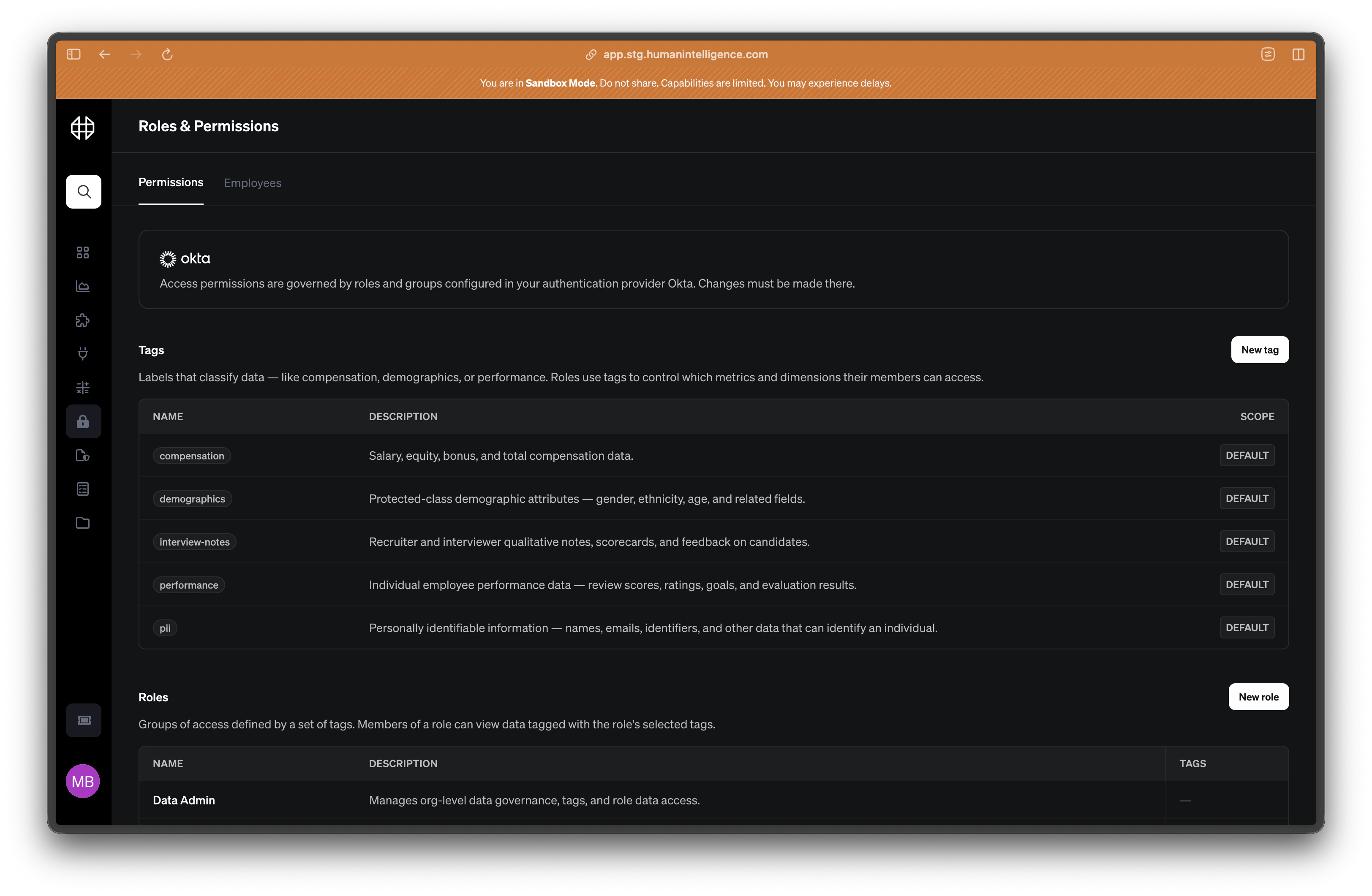
A category is a plain-language label that describes what kind of data something contains. Human Intelligence comes with a set of default categories. Your admin can also create custom categories to fit your organization’s needs.
Categories are assigned at the metric or dimension level. A single metric can carry multiple categories if it touches more than one sensitive area.
Roles
A role is a named group of category-based permissions. Instead of managing access for each person one by one, you create roles that map to the categories your teams need. For example:- Recruiting Ops — has access to
interview-notesanddemographics. - HR Leadership — has access to
compensation,performance, anddemographics. - People Analytics — has access to all categories.
System roles
Human Intelligence ships with two built-in system roles that govern administrative access to the platform itself. Unlike custom roles, system roles can’t be edited or deleted — they’re assigned to the people responsible for running Human Intelligence in your organization.Platform Admin
Platform Admins own the configuration of the Human Intelligence platform for your organization. They can:- Configure SSO for the org.
- Configure Directory Sync for the org.
- Configure Directory Sync group-to-role mappings so people are placed into the right roles automatically.
- Create and delete roles.
- Assign categories to roles.
- Assign categories to metrics.
- Manage policies and assign policies to roles.
Data Admin
Data Admins own the data layer. They can:- Manage metrics — create, edit, and retire metric definitions.
- Manage segments — create, edit, and retire reusable filters.
Creating a category and assigning it
1
Open the Permissions page
Go to Settings > Permissions. You’ll see the Categories table at the top with all current categories listed.
2
Create a new category
Click Add Category. Give it a short, descriptive name (like “executive-only” or “recruiting”) and add a plain-English description so your team understands what it covers.
3
Assign the category to a metric or dimension
Navigate to the metric or dimension you want to protect. Open its detail panel and look for the Categories section. Select the category you just created and save.
4
Map the category to a role
Go back to Settings > Permissions and scroll to the Roles section. Edit the role that should have access to this category, add the category to the role’s category list, and save.