> ## Documentation Index
> Fetch the complete documentation index at: https://docs.humanintelligence.com/llms.txt
> Use this file to discover all available pages before exploring further.
# Segments
> Reusable filters that define who's included in your analysis.
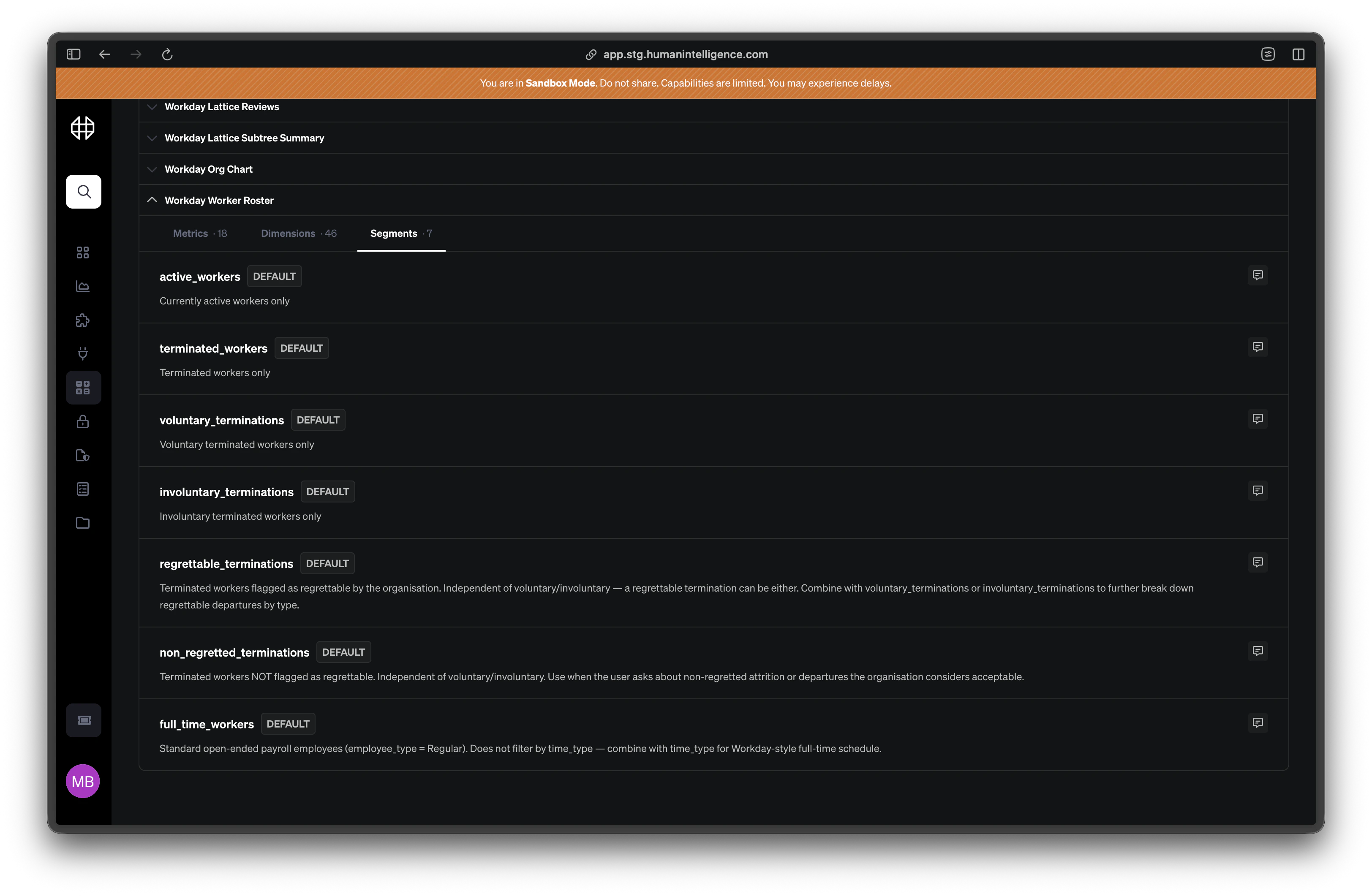
A segment is a named filter that defines a specific scope. Instead of rebuilding the same filter logic every time you need it, you define a segment once and reuse it across metrics, scopes, and reports.
Think of segments as labels for groups of people (or records) in your data. When you say "active employees" or "full-time workers," you're describing a segment.
 ## Common Segments
Here are a few segments you'll see in most Human Intelligence setups:
Workers with a current, active employment status. This is the most common segment and often serves as the default scope for headcount-related metrics.
Employees classified as full-time, excluding part-time, temporary, and contingent workers. Useful when you need to isolate metrics to your core workforce.
Current employees who have applied for an open role within the organization. Helpful for tracking internal mobility and promotion pipelines.
Employees in engineering-related departments. A good example of a department-specific segment you might create for your organization.
## What Makes a Good Segment
Not every filter needs to be a segment. A good segment is:
* **Reusable** — it applies to more than one metric or analysis
* **Clearly named** — anyone in your organization can understand what scope it describes
* **Documented** — it has a plain-English description explaining who's included and who's not
* **Stable** — it doesn't change so often that dependent metrics become unreliable
## Types of Segments
Enumeration segments filter by picking values from a list. They're the most common and easiest to understand.
**How they work:** You choose a dimension (like `department` or `employment_type`) and select which values to include.
**Example:** A "Full-Time Workers" segment might filter the `employment_type` dimension to include only `Full-Time`.
**Best for:** Straightforward scopes where you can point to specific values in your data — departments, locations, job levels, employment types.
SQL segments use advanced filter logic for scopes that can't be captured by a simple list of values.
**How they work:** Behind the scenes, these segments use flexible expressions that can combine multiple dimensions, date ranges, and business rules.
**Example:** An "Employees approaching review eligibility" segment might combine `hire_date`, `last_review_date`, and `employment_status` to find the right scope.
**Best for:** Complex scopes that depend on multiple conditions, date comparisons, or calculations across dimensions. Your analytics team typically creates and manages these.
## Platform vs. Custom Segments
Default segments provided by Human Intelligence, like `active_workers` or `external_requisitions`. These cover the most common scopes and are ready to use out of the box.
Segments your organization creates for your own needs. If you need a scope that isn't covered by a platform default — like a specific business unit or a custom worker classification — you build it as a custom segment.
You can also create a **platform override** if a default segment doesn't quite match your organization's definition. For example, your definition of "active employees" might differ slightly from the platform default.
Changing a segment that's used as a scope will affect every metric using that scope. Before editing a widely-used segment, Human Intelligence will show you which metrics depend on it so you can assess the impact.
## Common Segments
Here are a few segments you'll see in most Human Intelligence setups:
Workers with a current, active employment status. This is the most common segment and often serves as the default scope for headcount-related metrics.
Employees classified as full-time, excluding part-time, temporary, and contingent workers. Useful when you need to isolate metrics to your core workforce.
Current employees who have applied for an open role within the organization. Helpful for tracking internal mobility and promotion pipelines.
Employees in engineering-related departments. A good example of a department-specific segment you might create for your organization.
## What Makes a Good Segment
Not every filter needs to be a segment. A good segment is:
* **Reusable** — it applies to more than one metric or analysis
* **Clearly named** — anyone in your organization can understand what scope it describes
* **Documented** — it has a plain-English description explaining who's included and who's not
* **Stable** — it doesn't change so often that dependent metrics become unreliable
## Types of Segments
Enumeration segments filter by picking values from a list. They're the most common and easiest to understand.
**How they work:** You choose a dimension (like `department` or `employment_type`) and select which values to include.
**Example:** A "Full-Time Workers" segment might filter the `employment_type` dimension to include only `Full-Time`.
**Best for:** Straightforward scopes where you can point to specific values in your data — departments, locations, job levels, employment types.
SQL segments use advanced filter logic for scopes that can't be captured by a simple list of values.
**How they work:** Behind the scenes, these segments use flexible expressions that can combine multiple dimensions, date ranges, and business rules.
**Example:** An "Employees approaching review eligibility" segment might combine `hire_date`, `last_review_date`, and `employment_status` to find the right scope.
**Best for:** Complex scopes that depend on multiple conditions, date comparisons, or calculations across dimensions. Your analytics team typically creates and manages these.
## Platform vs. Custom Segments
Default segments provided by Human Intelligence, like `active_workers` or `external_requisitions`. These cover the most common scopes and are ready to use out of the box.
Segments your organization creates for your own needs. If you need a scope that isn't covered by a platform default — like a specific business unit or a custom worker classification — you build it as a custom segment.
You can also create a **platform override** if a default segment doesn't quite match your organization's definition. For example, your definition of "active employees" might differ slightly from the platform default.
Changing a segment that's used as a scope will affect every metric using that scope. Before editing a widely-used segment, Human Intelligence will show you which metrics depend on it so you can assess the impact.