> ## Documentation Index
> Fetch the complete documentation index at: https://docs.humanintelligence.com/llms.txt
> Use this file to discover all available pages before exploring further.
# Metrics
> Trusted business calculations that everyone agrees on.
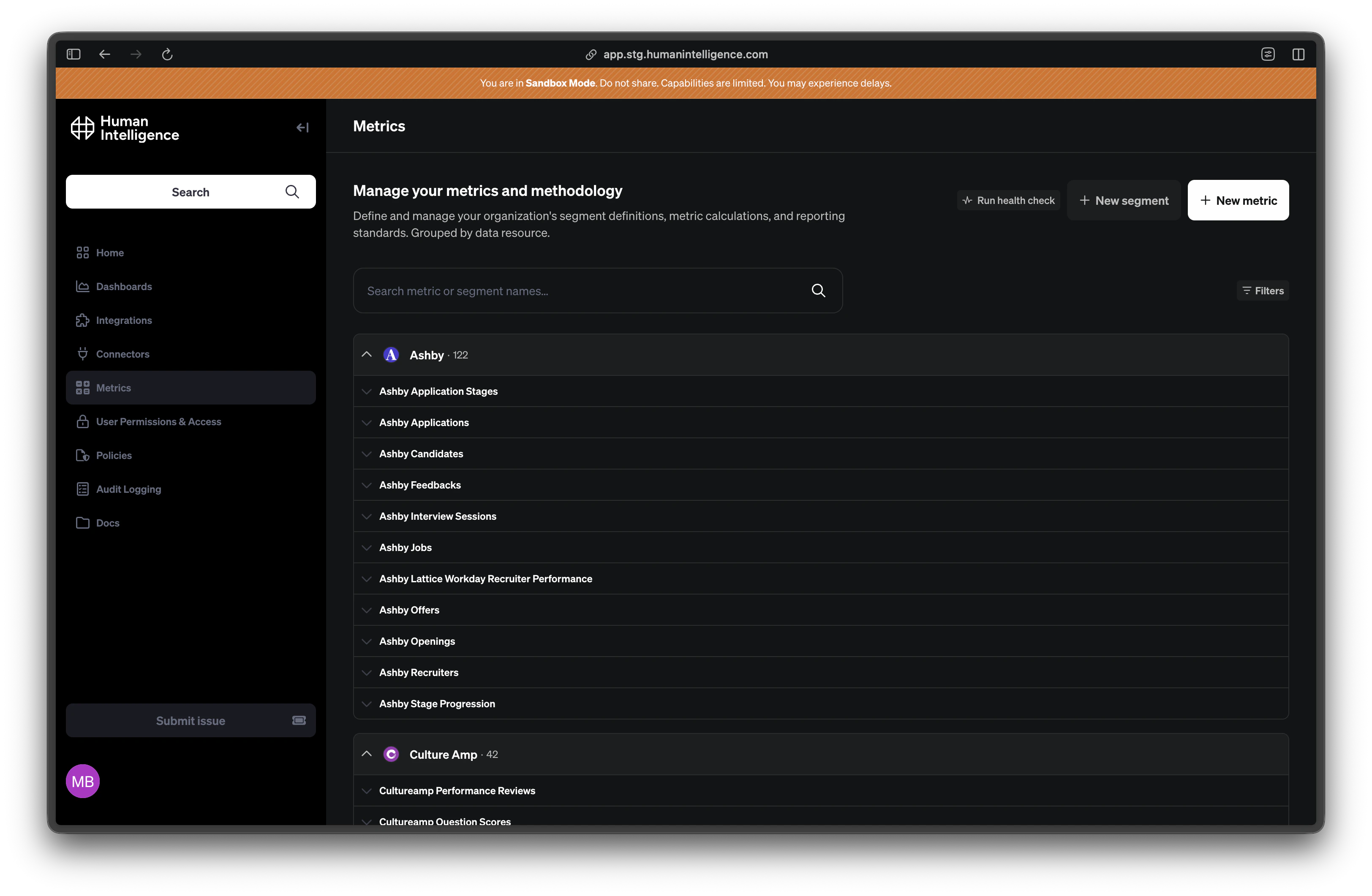
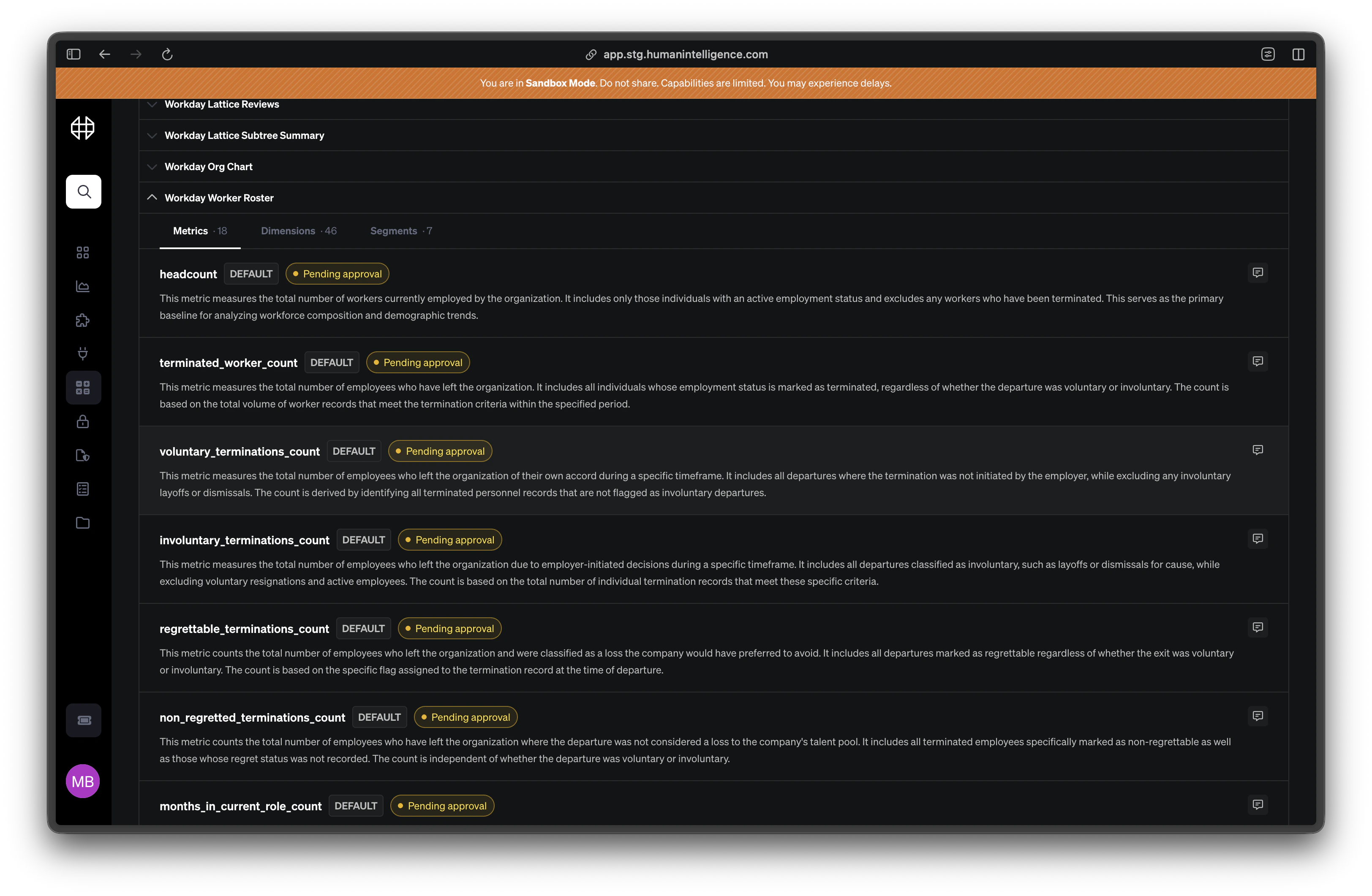
A metric is a trusted calculation that gives your organization a single, agreed-upon answer to a business question. Think of headcount — instead of every team counting employees differently, a metric defines exactly how that number is calculated so everyone sees the same result.
Metrics are the foundation of Human Intelligence. They replace one-off spreadsheet formulas and conflicting numbers with shared definitions your whole organization can trust.
 ## What Makes Up a Metric
Every metric in Human Intelligence is built from a few key pieces. Expand each one below to learn what it does.
Every metric has a short **name** (like `headcount` or `offer_acceptance_rate`) and a plain-English **description** that explains what it measures. The name is how systems reference it; the description is how people understand it.
The formula is the actual calculation — the math behind the number. For example, headcount might use a simple count of employee records, while offer acceptance rate divides accepted offers by total offers extended. You don't need to write code; Human Intelligence walks you through building the formula step by step.
The measure type tells the platform what kind of number this metric produces. Common types include:
* **Count** — counts records (e.g., number of employees)
* **Average** — averages values (e.g., average days to fill a role)
* **Sum** — adds values together (e.g., total compensation spend)
* **Number** — a derived calculation like a ratio or percentage
This helps the platform validate your formula and display results correctly.
The scope defines which group of people the metric includes by default. For example, headcount might default to the **active\_workers** segment so it automatically excludes terminated employees. Learn more on the [Scopes](/platform/scopes) page.
Guidance is where your organization adds context — why this metric was defined a certain way, when to use it, and what to watch out for. It's the human layer on top of the formula that helps people interpret results correctly.
## Types of Metrics
Default definitions that Human Intelligence provides out of the box. These cover common people analytics calculations like headcount, attrition, and time-to-fill. They're ready to use from day one.
Metrics your organization creates for your own business needs. If you measure something unique — like a specific engagement score or a custom retention calculation — you build it as a custom metric.
Your organization's version of a platform metric. If the default headcount definition doesn't quite fit how you count employees, you override it with your own logic while keeping the same metric name.
## What Makes Up a Metric
Every metric in Human Intelligence is built from a few key pieces. Expand each one below to learn what it does.
Every metric has a short **name** (like `headcount` or `offer_acceptance_rate`) and a plain-English **description** that explains what it measures. The name is how systems reference it; the description is how people understand it.
The formula is the actual calculation — the math behind the number. For example, headcount might use a simple count of employee records, while offer acceptance rate divides accepted offers by total offers extended. You don't need to write code; Human Intelligence walks you through building the formula step by step.
The measure type tells the platform what kind of number this metric produces. Common types include:
* **Count** — counts records (e.g., number of employees)
* **Average** — averages values (e.g., average days to fill a role)
* **Sum** — adds values together (e.g., total compensation spend)
* **Number** — a derived calculation like a ratio or percentage
This helps the platform validate your formula and display results correctly.
The scope defines which group of people the metric includes by default. For example, headcount might default to the **active\_workers** segment so it automatically excludes terminated employees. Learn more on the [Scopes](/platform/scopes) page.
Guidance is where your organization adds context — why this metric was defined a certain way, when to use it, and what to watch out for. It's the human layer on top of the formula that helps people interpret results correctly.
## Types of Metrics
Default definitions that Human Intelligence provides out of the box. These cover common people analytics calculations like headcount, attrition, and time-to-fill. They're ready to use from day one.
Metrics your organization creates for your own business needs. If you measure something unique — like a specific engagement score or a custom retention calculation — you build it as a custom metric.
Your organization's version of a platform metric. If the default headcount definition doesn't quite fit how you count employees, you override it with your own logic while keeping the same metric name.
 ## Creating or Editing a Metric
Navigate to the **Metrics** section from the sidebar. You'll see all available metrics for your organization.
Click **New Metric** to start from scratch, or click an existing metric to edit it. If you're editing a platform metric, the platform will create an override so the original stays intact.
Fill in the name, description, formula, and measure type. Choose a default scope to set who the metric includes. Add guidance notes to help your team interpret the results.
Before saving, Human Intelligence validates your formula and shows a preview of the results. Review the numbers to make sure everything looks right.
Once you're satisfied, save the metric. It becomes the trusted definition for your organization.
Every metric change goes through validation and preview before it goes live. You'll always see the impact of your changes before they affect anyone else's reports or analyses.
**Example:** Headcount = count of active employees. Default scope: the `active_workers` segment. Guidance: "Includes all active full-time and part-time employees. Excludes contractors and contingent workers."
## Creating or Editing a Metric
Navigate to the **Metrics** section from the sidebar. You'll see all available metrics for your organization.
Click **New Metric** to start from scratch, or click an existing metric to edit it. If you're editing a platform metric, the platform will create an override so the original stays intact.
Fill in the name, description, formula, and measure type. Choose a default scope to set who the metric includes. Add guidance notes to help your team interpret the results.
Before saving, Human Intelligence validates your formula and shows a preview of the results. Review the numbers to make sure everything looks right.
Once you're satisfied, save the metric. It becomes the trusted definition for your organization.
Every metric change goes through validation and preview before it goes live. You'll always see the impact of your changes before they affect anyone else's reports or analyses.
**Example:** Headcount = count of active employees. Default scope: the `active_workers` segment. Guidance: "Includes all active full-time and part-time employees. Excludes contractors and contingent workers."