> ## Documentation Index
> Fetch the complete documentation index at: https://docs.humanintelligence.com/llms.txt
> Use this file to discover all available pages before exploring further.
# Integrations
> Connect your people systems to power your analytics.
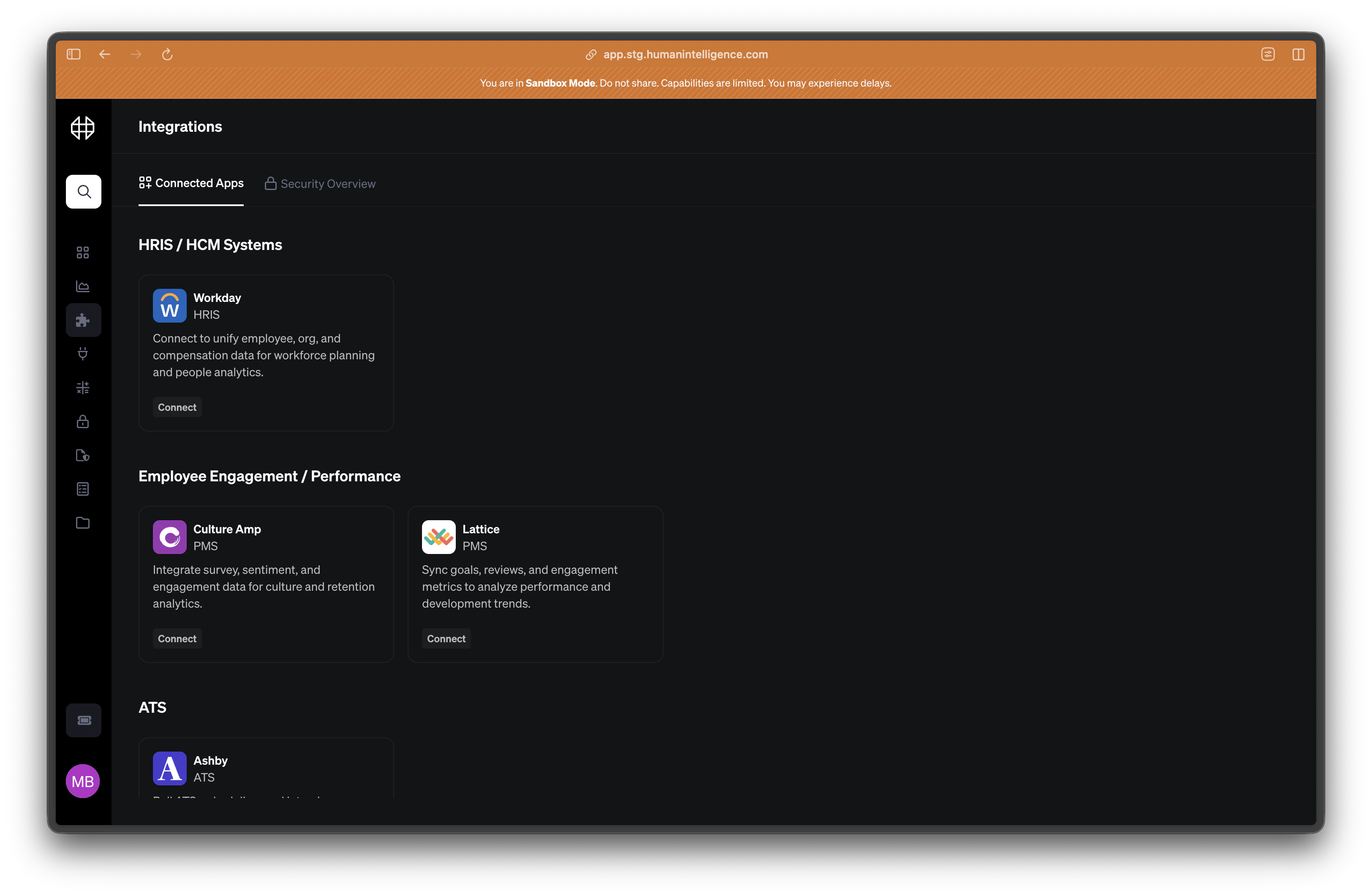
Integrations are bridges between your existing people systems and Human Intelligence. Once connected, your data flows automatically into datasets that power every metric, report, and insight in the platform.
 ## Supported Providers
We support a wide range of people systems across five provider families. If you don't see your system listed, reach out — we're adding new connectors regularly.
Core people data — headcount, org structure, demographics.
* Workday
* BambooHR
* Rippling
Recruiting and hiring pipeline data.
* Greenhouse
* Lever
* Ashby
Reviews, ratings, and survey results.
* Lattice
* Culture Amp
* 15Five
Tools your teams use every day.
* Slack
* Microsoft 365
* Google Workspace
Compensation, equity, and financial planning.
* Carta
* Shareworks
* Pave
**Don't see your system?** We're always adding new providers. [Talk to us](https://www.humanintelligence.com/contact) and we'll let you know what's on the roadmap.
## How to Connect
From the left sidebar, click **Integrations**. You'll see a list of available providers organized by category.
Find the system you want to connect and click on it. You'll see a brief description of what data will be synced along with any prerequisites.
Follow the prompts to log in to your provider and grant access. Most connections use OAuth, so you won't need to copy API keys. Once authenticated, your first data sync will begin automatically.
## Connection Health
After connecting a provider, you can monitor its status on the Integrations page. Each connection shows one of four states:
| Status | What it means |
| ------------ | ----------------------------------------------------------------------------- |
| **Active** | Everything is working. Data is syncing on schedule. |
| **Inactive** | The connection is paused or has been turned off. No data is flowing. |
| **Degraded** | The connection is partially working. Some resources may not be syncing. |
| **Error** | Something went wrong. Check the connection details for troubleshooting steps. |
Click into any integration to see **resource-level health**. This tells you exactly which data types (like employees, departments, or job postings) are syncing successfully and which might need attention.
Integrations feed your datasets. Datasets power your metrics. A healthy integration is the foundation of trustworthy analytics.
## Supported Providers
We support a wide range of people systems across five provider families. If you don't see your system listed, reach out — we're adding new connectors regularly.
Core people data — headcount, org structure, demographics.
* Workday
* BambooHR
* Rippling
Recruiting and hiring pipeline data.
* Greenhouse
* Lever
* Ashby
Reviews, ratings, and survey results.
* Lattice
* Culture Amp
* 15Five
Tools your teams use every day.
* Slack
* Microsoft 365
* Google Workspace
Compensation, equity, and financial planning.
* Carta
* Shareworks
* Pave
**Don't see your system?** We're always adding new providers. [Talk to us](https://www.humanintelligence.com/contact) and we'll let you know what's on the roadmap.
## How to Connect
From the left sidebar, click **Integrations**. You'll see a list of available providers organized by category.
Find the system you want to connect and click on it. You'll see a brief description of what data will be synced along with any prerequisites.
Follow the prompts to log in to your provider and grant access. Most connections use OAuth, so you won't need to copy API keys. Once authenticated, your first data sync will begin automatically.
## Connection Health
After connecting a provider, you can monitor its status on the Integrations page. Each connection shows one of four states:
| Status | What it means |
| ------------ | ----------------------------------------------------------------------------- |
| **Active** | Everything is working. Data is syncing on schedule. |
| **Inactive** | The connection is paused or has been turned off. No data is flowing. |
| **Degraded** | The connection is partially working. Some resources may not be syncing. |
| **Error** | Something went wrong. Check the connection details for troubleshooting steps. |
Click into any integration to see **resource-level health**. This tells you exactly which data types (like employees, departments, or job postings) are syncing successfully and which might need attention.
Integrations feed your datasets. Datasets power your metrics. A healthy integration is the foundation of trustworthy analytics.